

Overview
Safi Data supports two types of questions. Understanding when to use each type — and how to configure them — will help you get the most out of every survey.Question Types

Smart Questions
Smart Questions are open-ended questions powered by AI. Rather than presenting options, they invite the respondent to answer in their own words, just like a conversation. During the survey, the AI reads each response and can follow up with probing questions to dig deeper. This makes Smart Questions ideal for qualitative research where you want to understand why, not just what. Use Smart Questions when you want to:- Understand motivations, feelings, or experiences
- Uncover insights you didn’t anticipate
- Collect rich, nuanced responses
- Explore a topic you don’t yet fully understand
Multiple Choice Questions
Multiple Choice Questions present respondents with a fixed set of options to choose from. They are fast to answer, easy to analyze, and work well when you already know the range of possible answers. Use Multiple Choice Questions when you want to:- Collect structured, quantifiable data
- Ask demographic questions (age, gender, location)
- Measure satisfaction on a scale
- Segment or filter respondents based on their answers
Changing Question Type
You can change a question’s type at any point before the survey goes live.
- Click on the question you want to change
- Click the question type selector (displayed near the top of the question card)
- Select Smart Question or Multiple Choice
Assigning an Objective to a Question
If you set up objectives in the previous step, you can assign each question to one.- Open the question card
- Click Assign Objective
- Select the relevant objective from the dropdown
Features
Probing (Smart Questions only)

- Survey question: “How do you feel about the quality of the product?”
- Respondent: “It’s okay but I’ve had issues with it breaking.”
- AI probe: “Can you tell me more about what broke and when that happened?”
- Open the question card
- Toggle Probing on
- Set probing level
Question Suggestions
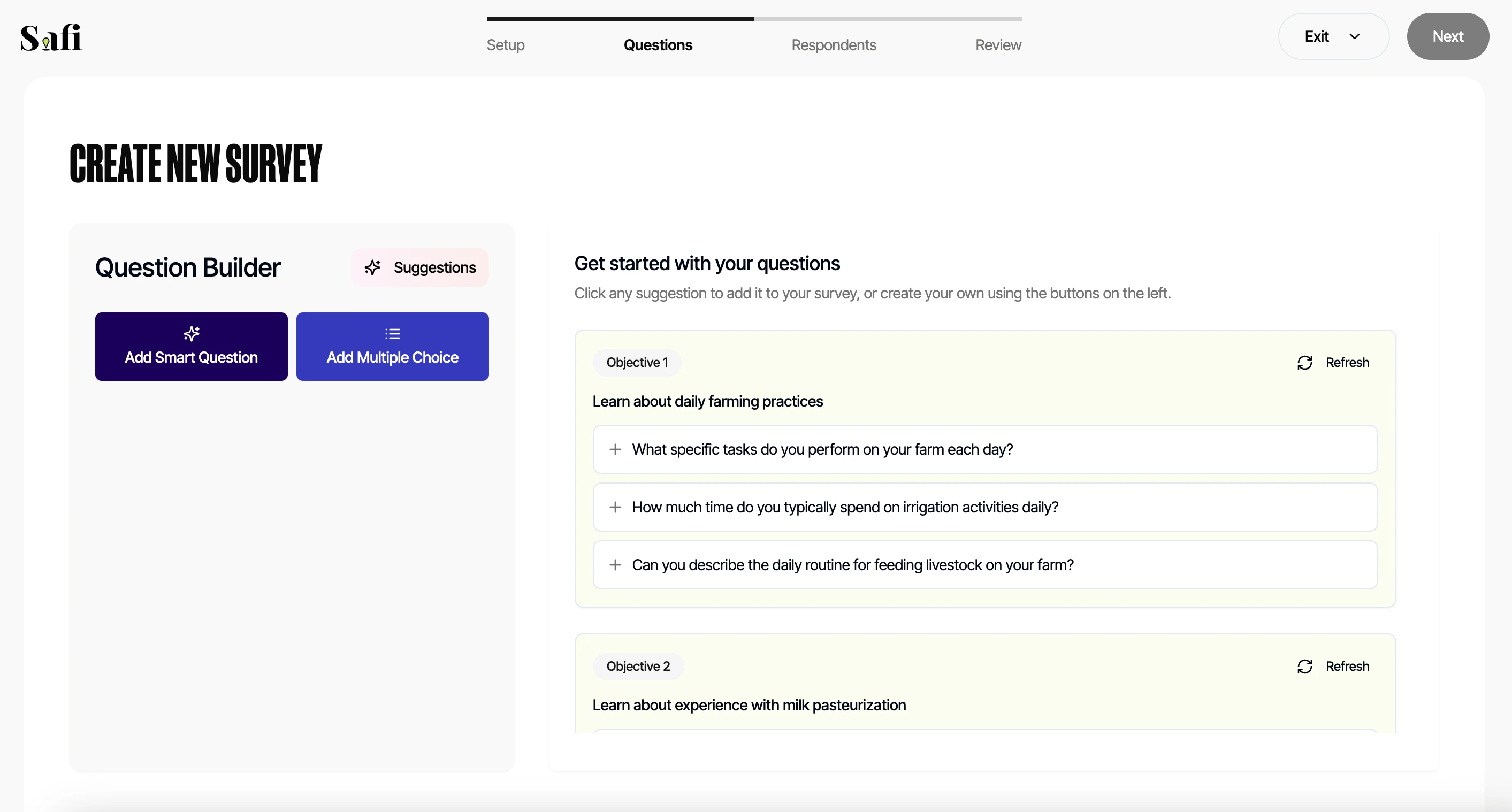
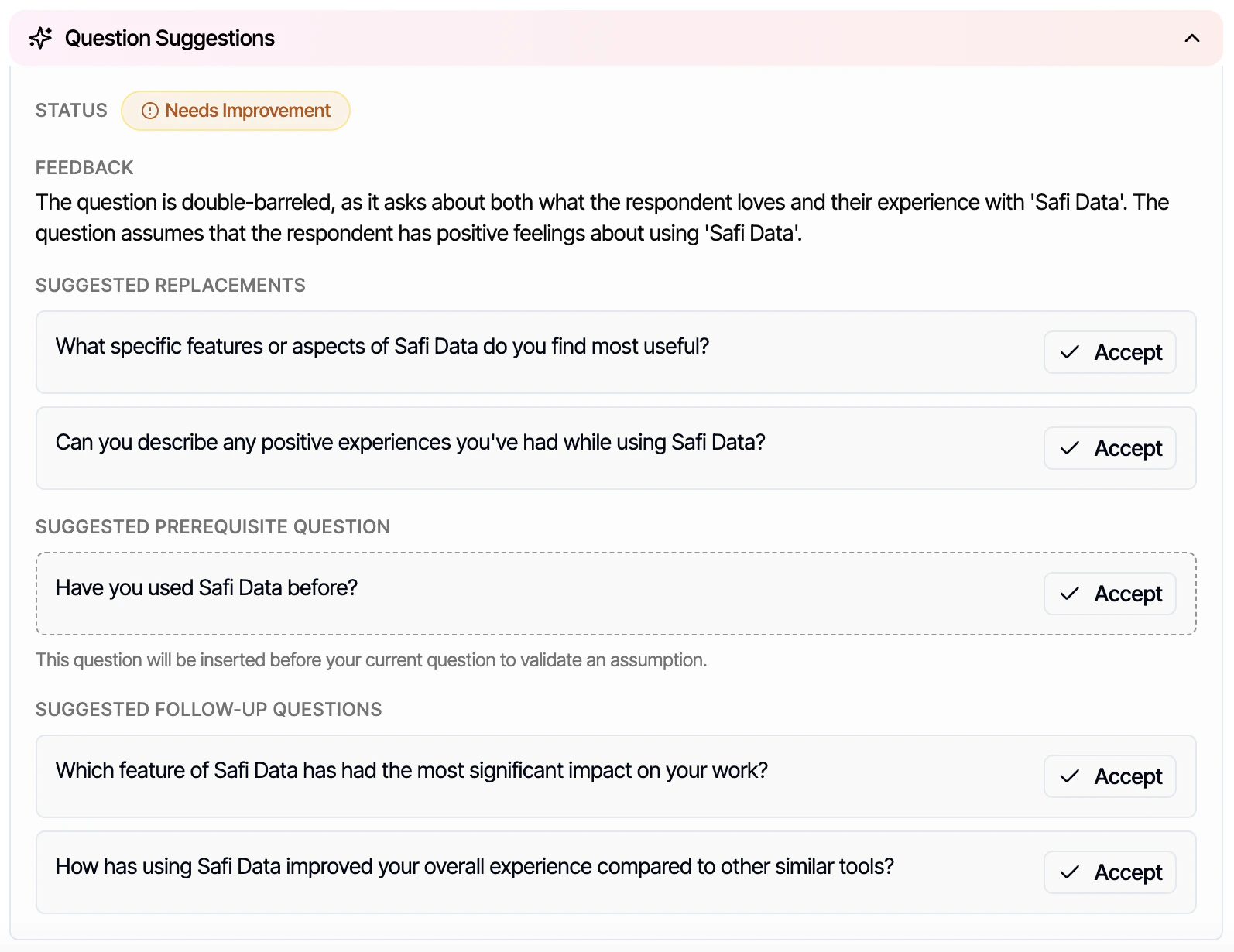
Safi Data can suggest questions based on your survey objectives. This is especially useful when you’re not sure where to start. To use question suggestions:- Click Suggest Questions in the question builder
- Review the list of AI-generated suggestions
- Click Add next to any question you want to include
- Edit the wording as needed
Question Criteria (Smart Questions only)
Question Criteria lets you define what a valid response looks like for a Smart Question. If a respondent gives an answer that doesn’t meet the criteria, the AI will politely ask them to try again. Example criteria:- “Response must mention a specific product name”
- “Response should be at least two sentences”
- “Response must be relevant to the topic of pricing”
- Open the Smart Question card
- Click Add Criteria
- Describe in plain language what a valid response looks like
Question Criteria is enforced conversationally - respondents will not see the criteria text. The AI uses it internally to evaluate responses and prompt for clarification if needed.
Question Logic (Multiple Choice only)
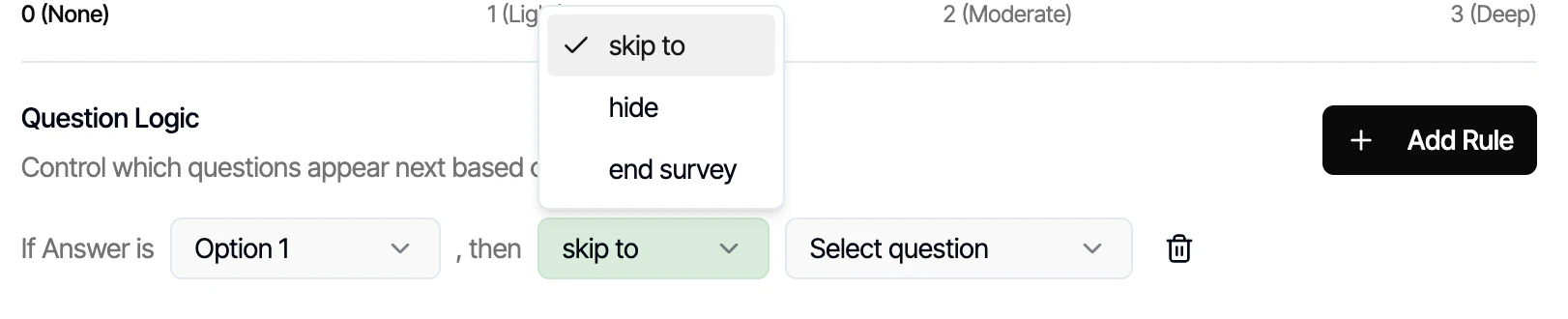
- Question 3: “Do you own a smartphone?”
- If Yes → show Question 4: “Which brand?”
- If No → skip Question 4
- Open the Multiple Choice question you want to apply logic to
- Click Add Logic
- Select the condition (e.g. “If answer to Question 3 is Yes”)
- Choose whether to show or skip this question or end survey
What’s Next
Setting Up Respondents
Upload your own contacts or tap into the Safi network to find your respondents.