

Overview
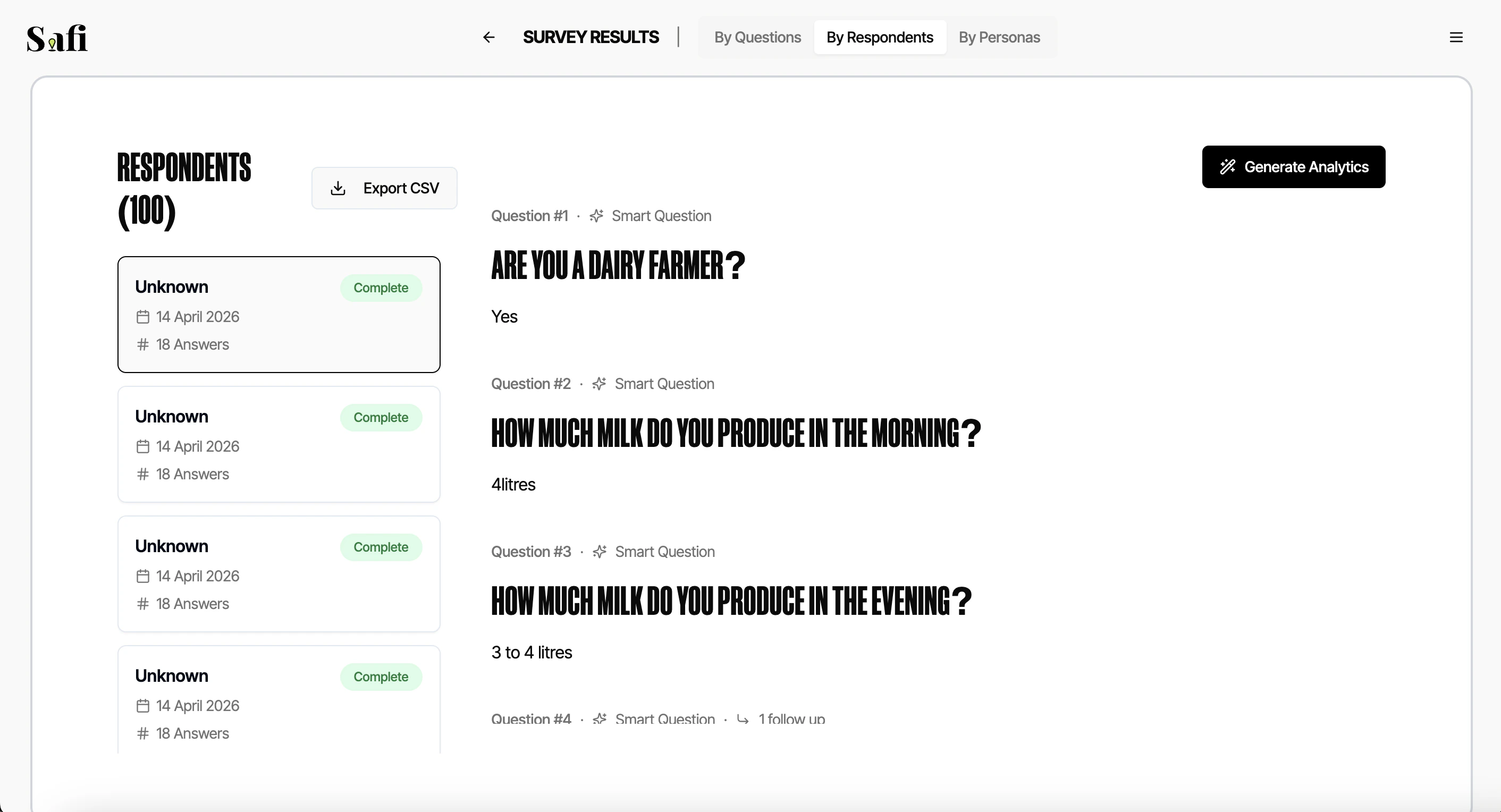
The respondent transcripts view gives you the full, unedited conversation between Safi Data and each respondent. This is where you can read what individuals actually said, not just aggregated summaries.Viewing Transcripts
The transcripts screen shows a list of all respondents on the left. Clicking a respondent opens their full conversation on the right, showing:- Each question as sent by Safi Data
- The respondent’s answer
- Any AI probing or clarifier exchanges that took place
Partial responses — where a respondent started but did not complete the survey — are included in the transcript list and marked with a Partial badge.
AI Chat (Beta)
Beta The AI Chat feature lets you ask questions about your transcript data in plain language.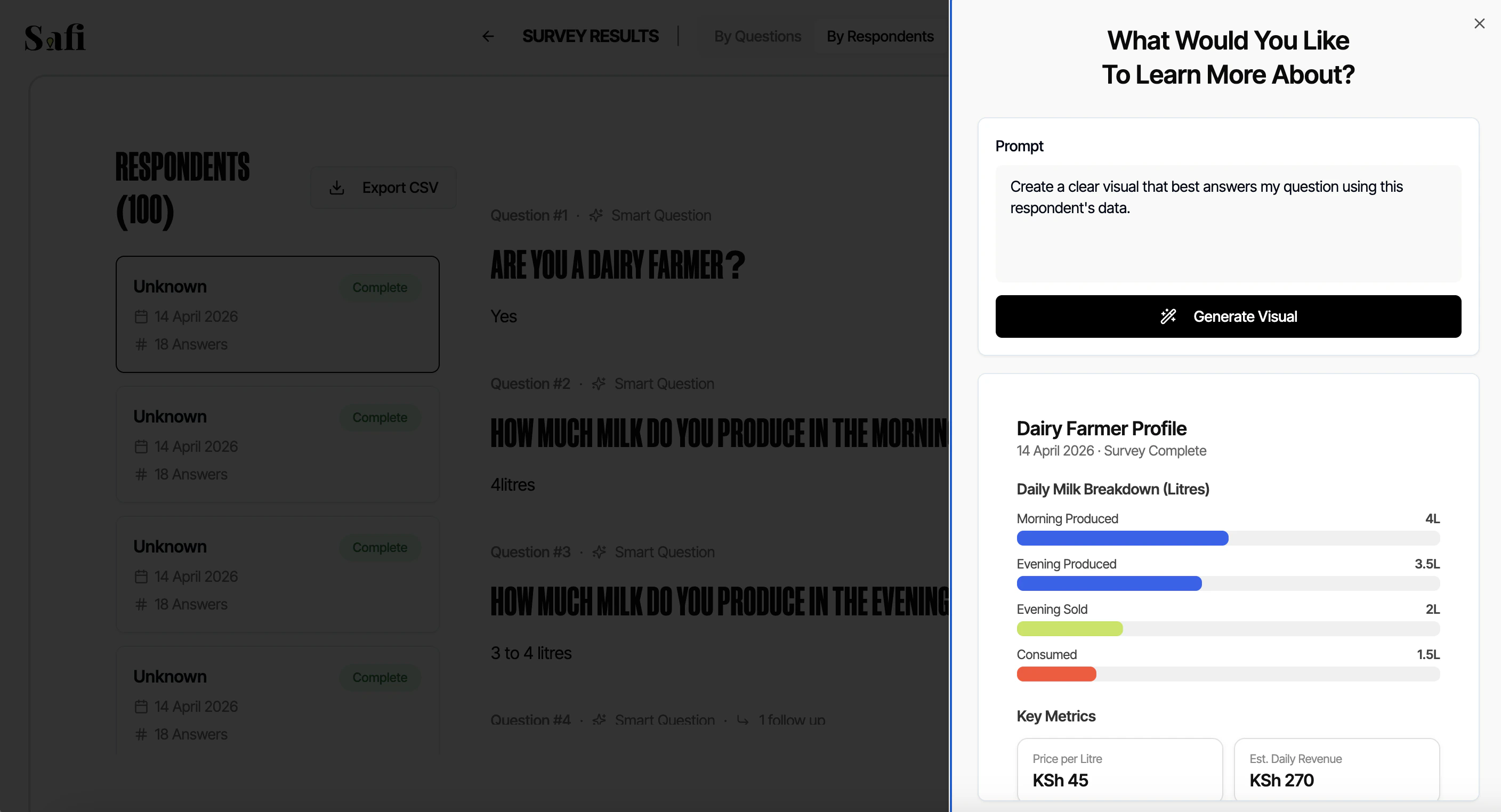
- “What were the most common complaints about delivery times?”
- “Which respondents mentioned price as a concern?”
- “Summarise what women aged 25–35 said about the product.”
- “Are there any responses that contradict the overall positive sentiment?”
- Open the Transcripts view
- Click AI Chat in the top right
- Type your question and press Enter
- The AI will search across your transcript and return a response with relevant quotes
AI Chat is currently in Beta. Results are generated from your one transcript at a time only — the AI does not draw on external information. As with all AI-generated summaries, we recommend verifying key findings in the raw transcripts.
Downloading Transcripts as CSV
You can export all transcript data as a.csv file for further analysis in Excel, Google Sheets, or any data tool.
The CSV includes:
- Respondent ID, name, and phone number (if available)
- Each question and the respondent’s answer in separate columns
- Language used
- Timestamps
- Voice memo transcriptions (as text)
- Any demographic data from the onboarding survey
- In the Transcripts view, click Download CSV
- Choose whether to include partial responses
- Click Export