

Overview
The Safi Data dashboard is your home screen. Every survey you have created appears here, along with its current status and response progress.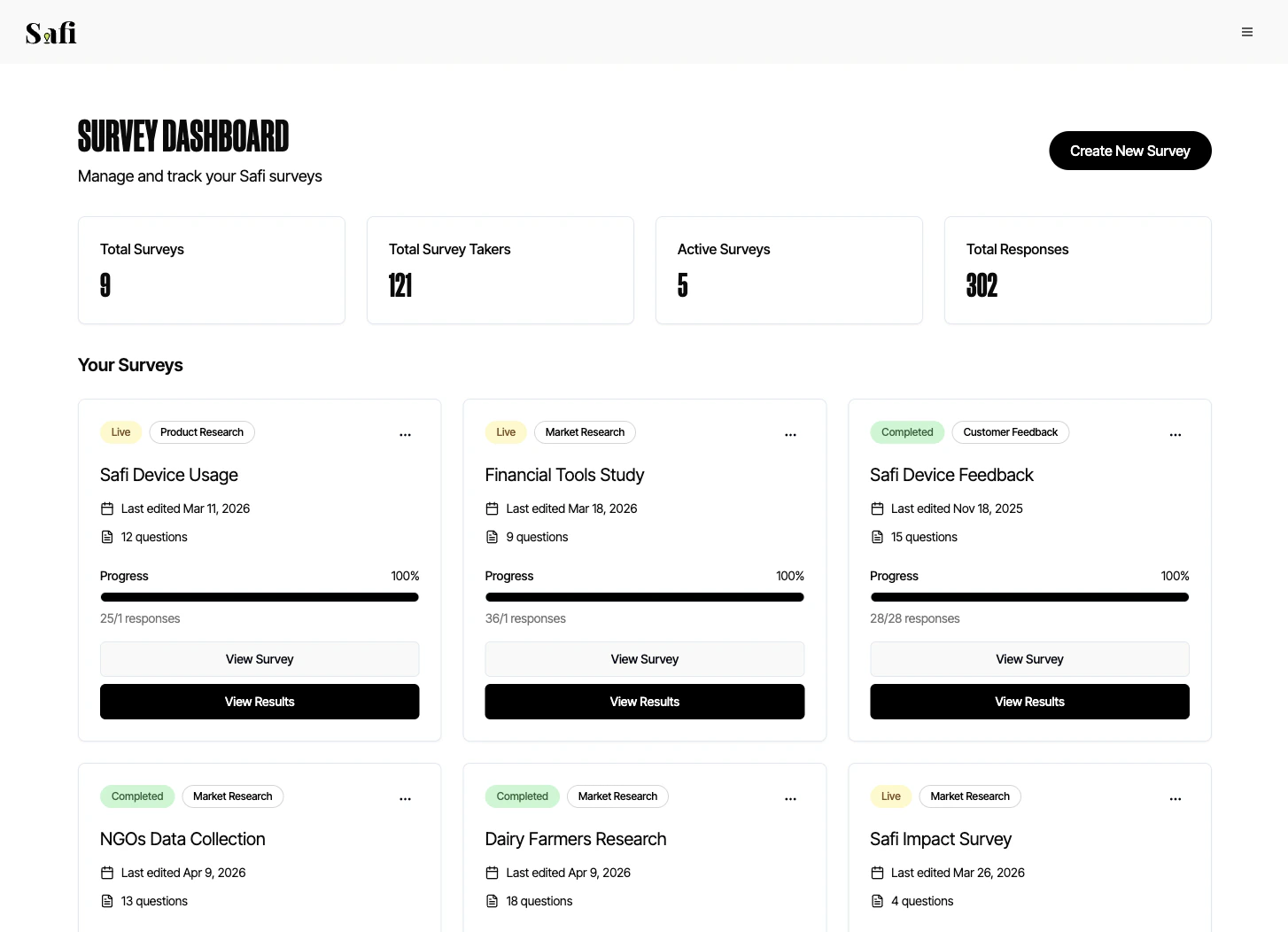
Survey List
Each container in the dashboard represents one survey and shows:- Survey name — the name you gave it during setup
- Status — the current state of the survey (see below)
- Response progress — how many respondents have completed the survey out of your goal (e.g. 47 / 100)
- Date created and last edited — when the survey was set up and last edited
- Actions — options to view, edit, duplicate, or mark as complete
Survey Statuses
Marking a Survey as Complete
You can manually mark a survey as complete at any time — for example, if you’ve collected enough responses before hitting your goal, or if you want to close the survey early.- Find the survey in your dashboard
- Click the ⋯ menu on the right
- Select Mark as Complete
- Confirm the action
Response Progress
The progress indicator shows completed responses / goal in real time. A response is counted as complete when a respondent has answered all questions in the survey. Partial responses (where a respondent started but did not finish) are not counted in the progress total, but are still accessible in the transcript view.Clicking Into a Survey
Click any survey row to open the full results view. From here you can access:Question & Objectives Analysis
See aggregated answers and AI-generated themes for each question and objective.
Transcripts
Read or listen to every individual conversation, with AI chat and CSV export.
Persona Generator
Generate audience personas automatically from your response data.