> ## Documentation Index
> Fetch the complete documentation index at: https://docs.safidata.com/llms.txt
> Use this file to discover all available pages before exploring further.
# Quickstart
> Create your Safi Data account and run your first survey in minutes.
## Overview
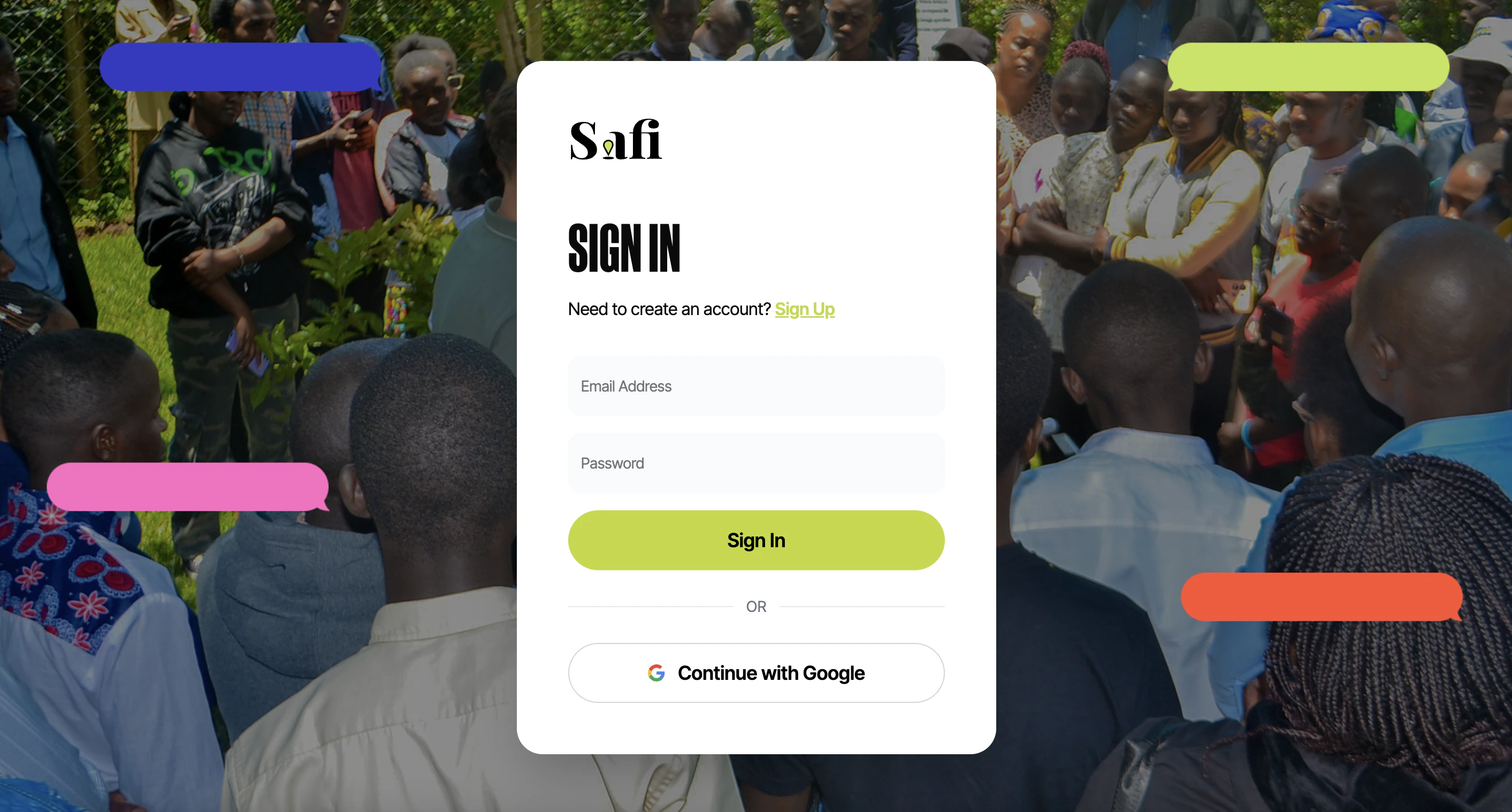
This guide walks you through signing up for Safi Data and getting your account ready to use. The whole process takes less than five minutes.
 ***
## Step 1 — Create Your Account
### Sign Up with Google
The fastest way to get started is with your Google account.
1. Go to [safidata.com](https://safidata.com)
2. Click **Sign up with Google**
3. Select the Google account you want to use
4. You will be redirected to your Safi Data dashboard
Signing up with Google means you never need to create or remember a separate password. Your Google account handles authentication securely.
***
### Sign Up with Email
If you prefer not to use Google:
1. Go to [safidata.com](https://safidata.com)
2. Click **Sign up with email**
3. Enter your email address, and a password
4. Check your inbox for a verification email and click the confirmation link
5. You will be redirected to your dashboard
***
## Step 2 — Log In
If you already have an account:
1. Go to [safidata.com](https://app.safidata.com)
2. Click **Log in**
3. Sign in with Google, or enter your email and password
***
## Forgot Your Password
If you signed up with email and have forgotten your password:
1. On the login screen, click **Forgot password?**
2. Enter the email address associated with your account
3. Check your inbox for a password reset email
4. Click the link in the email and enter a new password
5. Log in with your new password
Password reset links expire after 30 minutes. If your link has expired, return to the login screen and request a new one.
If you signed up with Google, you cannot reset a password — your access is managed through your Google account. Visit [myaccount.google.com](https://myaccount.google.com) to manage your Google security settings.
***
## What's Next
Once you're logged in, you're ready to create your first survey.
Set up your survey name, objectives, and category.
Add smart and multiple choice questions with AI features.
***
## Step 1 — Create Your Account
### Sign Up with Google
The fastest way to get started is with your Google account.
1. Go to [safidata.com](https://safidata.com)
2. Click **Sign up with Google**
3. Select the Google account you want to use
4. You will be redirected to your Safi Data dashboard
Signing up with Google means you never need to create or remember a separate password. Your Google account handles authentication securely.
***
### Sign Up with Email
If you prefer not to use Google:
1. Go to [safidata.com](https://safidata.com)
2. Click **Sign up with email**
3. Enter your email address, and a password
4. Check your inbox for a verification email and click the confirmation link
5. You will be redirected to your dashboard
***
## Step 2 — Log In
If you already have an account:
1. Go to [safidata.com](https://app.safidata.com)
2. Click **Log in**
3. Sign in with Google, or enter your email and password
***
## Forgot Your Password
If you signed up with email and have forgotten your password:
1. On the login screen, click **Forgot password?**
2. Enter the email address associated with your account
3. Check your inbox for a password reset email
4. Click the link in the email and enter a new password
5. Log in with your new password
Password reset links expire after 30 minutes. If your link has expired, return to the login screen and request a new one.
If you signed up with Google, you cannot reset a password — your access is managed through your Google account. Visit [myaccount.google.com](https://myaccount.google.com) to manage your Google security settings.
***
## What's Next
Once you're logged in, you're ready to create your first survey.
Set up your survey name, objectives, and category.
Add smart and multiple choice questions with AI features.