> ## Documentation Index
> Fetch the complete documentation index at: https://docs.safidata.com/llms.txt
> Use this file to discover all available pages before exploring further.
# Setting Up Questions
> Add smart questions and multiple choice questions, and configure AI-powered features.
## Overview
Safi Data supports two types of questions. Understanding when to use each type — and how to configure them — will help you get the most out of every survey.
***
## Question Types
 ### Smart Questions
Smart Questions are open-ended questions powered by AI. Rather than presenting options, they invite the respondent to answer in their own words, just like a conversation.
During the survey, the AI reads each response and can follow up with probing questions to dig deeper. This makes Smart Questions ideal for qualitative research where you want to understand *why*, not just *what*.
**Use Smart Questions when you want to:**
* Understand motivations, feelings, or experiences
* Uncover insights you didn't anticipate
* Collect rich, nuanced responses
* Explore a topic you don't yet fully understand
***
### Multiple Choice Questions
Multiple Choice Questions present respondents with a fixed set of options to choose from. They are fast to answer, easy to analyze, and work well when you already know the range of possible answers.
**Use Multiple Choice Questions when you want to:**
* Collect structured, quantifiable data
* Ask demographic questions (age, gender, location)
* Measure satisfaction on a scale
* Segment or filter respondents based on their answers
***
### Changing Question Type
You can change a question's type at any point before the survey goes live.
### Smart Questions
Smart Questions are open-ended questions powered by AI. Rather than presenting options, they invite the respondent to answer in their own words, just like a conversation.
During the survey, the AI reads each response and can follow up with probing questions to dig deeper. This makes Smart Questions ideal for qualitative research where you want to understand *why*, not just *what*.
**Use Smart Questions when you want to:**
* Understand motivations, feelings, or experiences
* Uncover insights you didn't anticipate
* Collect rich, nuanced responses
* Explore a topic you don't yet fully understand
***
### Multiple Choice Questions
Multiple Choice Questions present respondents with a fixed set of options to choose from. They are fast to answer, easy to analyze, and work well when you already know the range of possible answers.
**Use Multiple Choice Questions when you want to:**
* Collect structured, quantifiable data
* Ask demographic questions (age, gender, location)
* Measure satisfaction on a scale
* Segment or filter respondents based on their answers
***
### Changing Question Type
You can change a question's type at any point before the survey goes live.
 1. Click on the question you want to change
2. Click the **question type selector** (displayed near the top of the question card)
3. Select **Smart Question** or **Multiple Choice**
Changing the question type will clear any type-specific settings you have already configured, such as answer options or question logic.
***
### Assigning an Objective to a Question
If you set up objectives in the previous step, you can assign each question to one.
1. Open the question card
2. Click **Assign Objective**
3. Select the relevant objective from the dropdown
Questions without an assigned objective will appear under *Unassigned* in the analysis view.
***
## Features
### Probing *(Smart Questions only)*
1. Click on the question you want to change
2. Click the **question type selector** (displayed near the top of the question card)
3. Select **Smart Question** or **Multiple Choice**
Changing the question type will clear any type-specific settings you have already configured, such as answer options or question logic.
***
### Assigning an Objective to a Question
If you set up objectives in the previous step, you can assign each question to one.
1. Open the question card
2. Click **Assign Objective**
3. Select the relevant objective from the dropdown
Questions without an assigned objective will appear under *Unassigned* in the analysis view.
***
## Features
### Probing *(Smart Questions only)*
 Probing allows the AI to ask follow-up questions based on a respondent's answer. Instead of every respondent receiving the same fixed question, the AI reads their response and asks something relevant and specific.
**Example:**
* Survey question: *"How do you feel about the quality of the product?"*
* Respondent: *"It's okay but I've had issues with it breaking."*
* AI probe: *"Can you tell me more about what broke and when that happened?"*
To enable probing:
1. Open the question card
2. Toggle **Probing** on
3. Set **probing level**
Probing is most effective on questions about experience or opinion. Avoid enabling it on factual questions where a follow-up would feel intrusive.
***
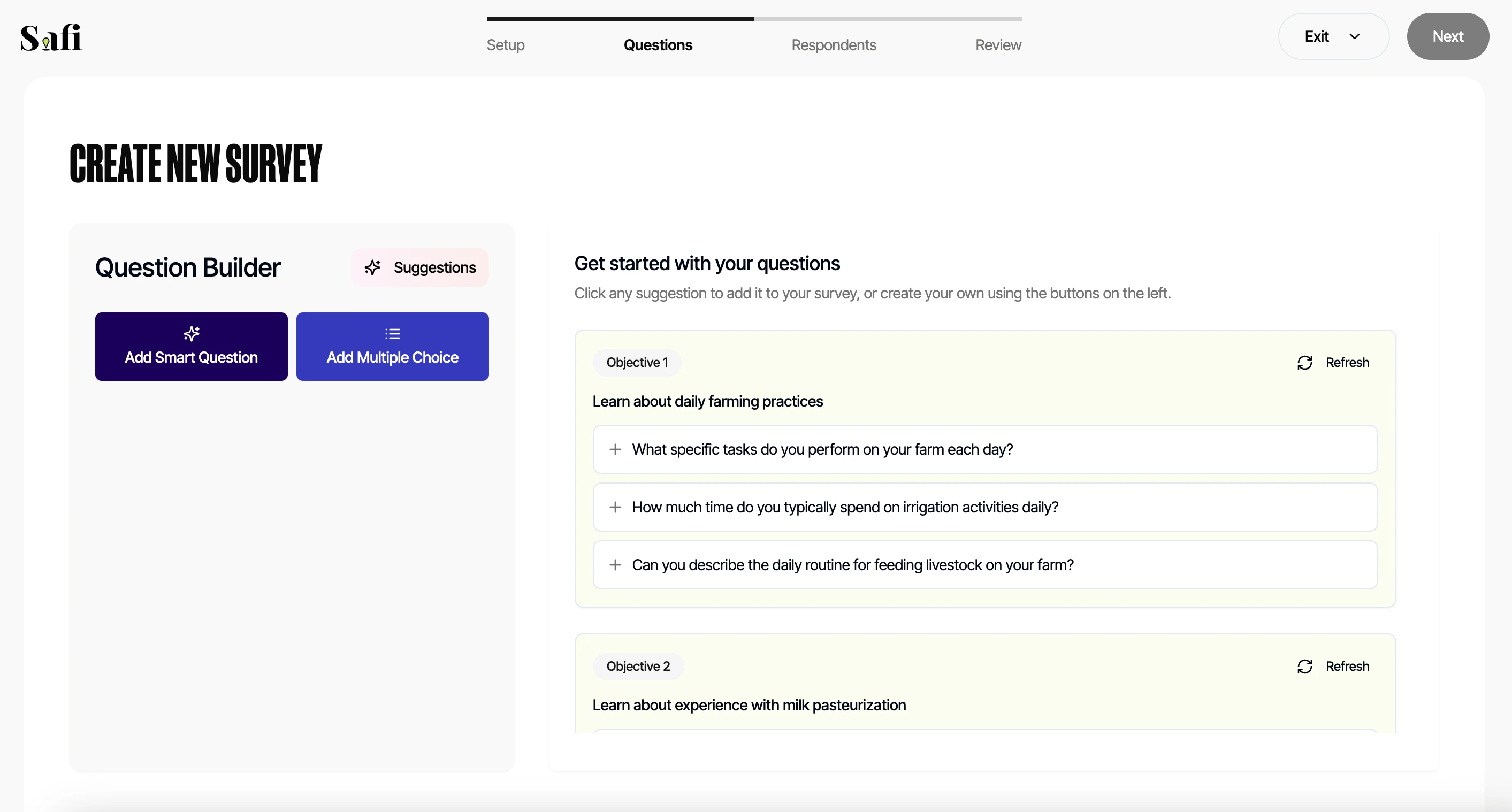
### Question Suggestions
Safi Data can suggest questions based on your survey objectives. This is especially useful when you're not sure where to start.
To use question suggestions:
1. Click **Suggest Questions** in the question builder
2. Review the list of AI-generated suggestions
3. Click **Add** next to any question you want to include
4. Edit the wording as needed
Suggestions are generated fresh each time you click the button, so you can run it multiple times to see different options.
Probing allows the AI to ask follow-up questions based on a respondent's answer. Instead of every respondent receiving the same fixed question, the AI reads their response and asks something relevant and specific.
**Example:**
* Survey question: *"How do you feel about the quality of the product?"*
* Respondent: *"It's okay but I've had issues with it breaking."*
* AI probe: *"Can you tell me more about what broke and when that happened?"*
To enable probing:
1. Open the question card
2. Toggle **Probing** on
3. Set **probing level**
Probing is most effective on questions about experience or opinion. Avoid enabling it on factual questions where a follow-up would feel intrusive.
***
### Question Suggestions
Safi Data can suggest questions based on your survey objectives. This is especially useful when you're not sure where to start.
To use question suggestions:
1. Click **Suggest Questions** in the question builder
2. Review the list of AI-generated suggestions
3. Click **Add** next to any question you want to include
4. Edit the wording as needed
Suggestions are generated fresh each time you click the button, so you can run it multiple times to see different options.
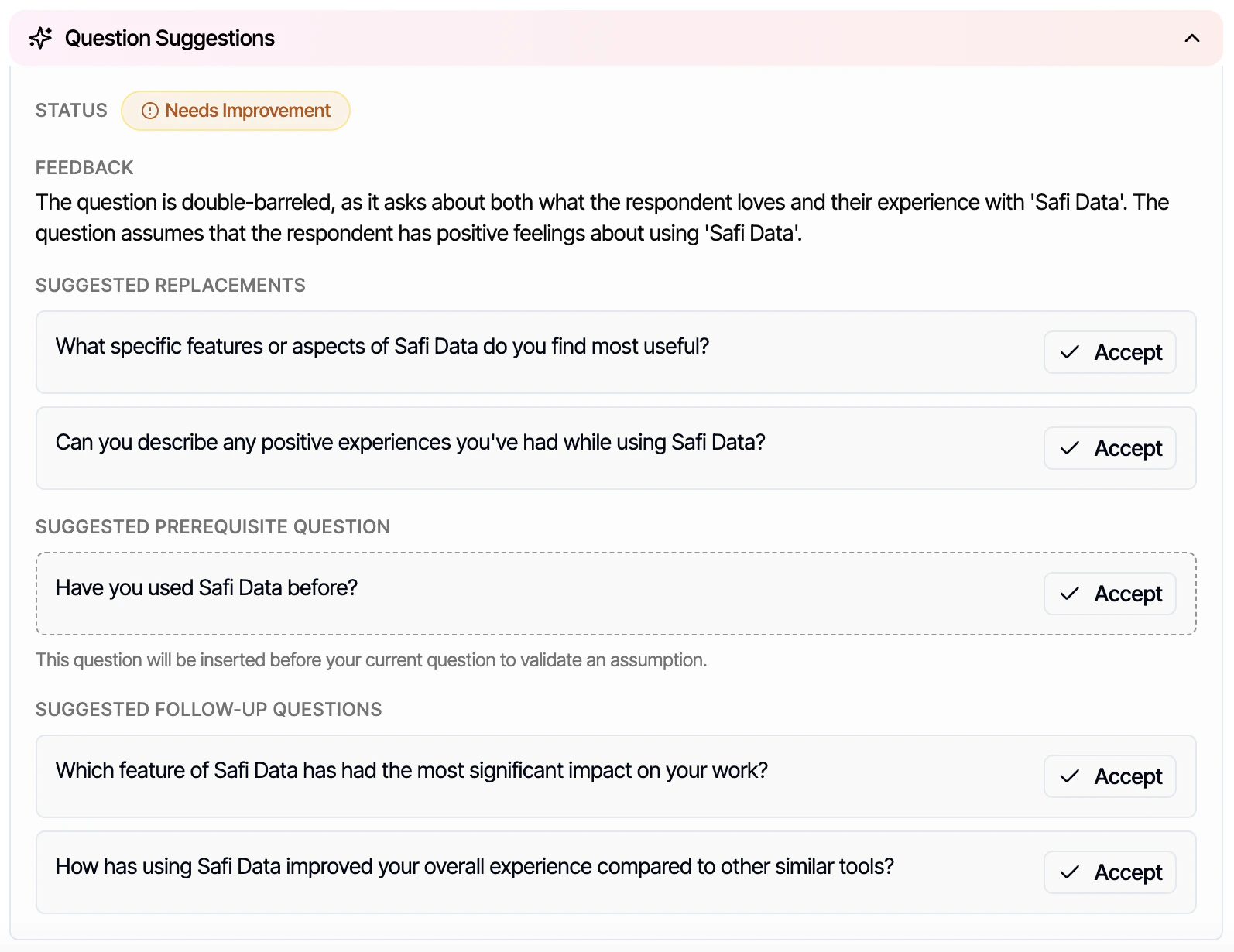
 For every question that you write, it is also able to give you suggestions on how to improve the question according to best practices, and suggests **replacement questions, prerequisite questions** and **follow-up questions.**
 ***
### Question Criteria *(Smart Questions only)*
Question Criteria lets you define what a *valid* response looks like for a Smart Question. If a respondent gives an answer that doesn't meet the criteria, the AI will politely ask them to try again.
**Example criteria:**
* *"Response must mention a specific product name"*
* *"Response should be at least two sentences"*
* *"Response must be relevant to the topic of pricing"*
To add criteria:
1. Open the Smart Question card
2. Click **Add Criteria**
3. Describe in plain language what a valid response looks like
Question Criteria is enforced conversationally - respondents will not see the criteria text. The AI uses it internally to evaluate responses and prompt for clarification if needed.
***
### Question Logic *(Multiple Choice only)*
***
### Question Criteria *(Smart Questions only)*
Question Criteria lets you define what a *valid* response looks like for a Smart Question. If a respondent gives an answer that doesn't meet the criteria, the AI will politely ask them to try again.
**Example criteria:**
* *"Response must mention a specific product name"*
* *"Response should be at least two sentences"*
* *"Response must be relevant to the topic of pricing"*
To add criteria:
1. Open the Smart Question card
2. Click **Add Criteria**
3. Describe in plain language what a valid response looks like
Question Criteria is enforced conversationally - respondents will not see the criteria text. The AI uses it internally to evaluate responses and prompt for clarification if needed.
***
### Question Logic *(Multiple Choice only)*
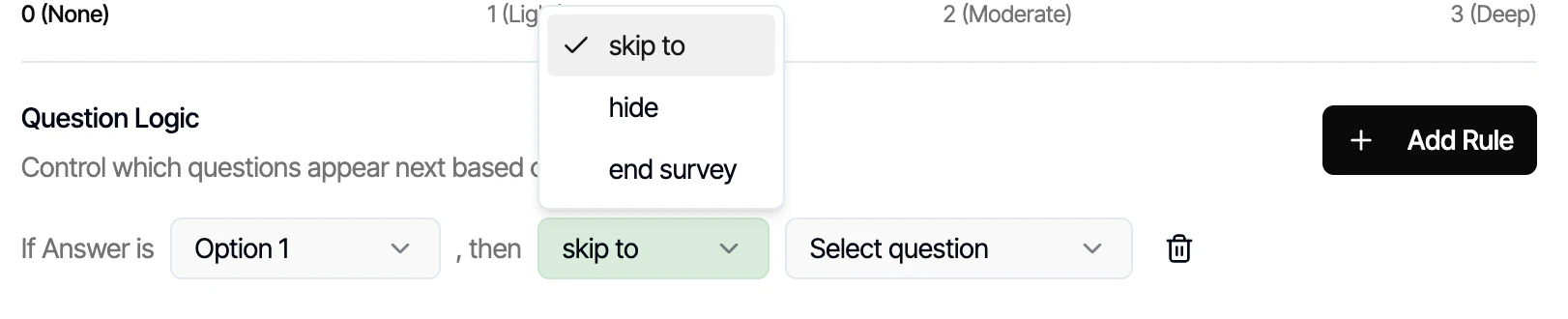 Question Logic lets you show or hide questions based on a respondent's answer to a previous Multiple Choice question. This keeps the survey relevant and avoids asking questions that don't apply.
**Example:**
* Question 3: *"Do you own a smartphone?"*
* If **Yes** → show Question 4: *"Which brand?"*
* If **No** → skip Question 4
To add logic:
1. Open the Multiple Choice question you want to apply logic *to*
2. Click **Add Logic**
3. Select the condition (e.g. *"If answer to Question 3 is Yes"*)
4. Choose whether to **show** or **skip** this question or **end survey**
{/* 🎥 Recommended: Short screen recording showing logic being set up end-to-end */}
***
## What's Next
Upload your own contacts or tap into the Safi network to find your respondents.
Question Logic lets you show or hide questions based on a respondent's answer to a previous Multiple Choice question. This keeps the survey relevant and avoids asking questions that don't apply.
**Example:**
* Question 3: *"Do you own a smartphone?"*
* If **Yes** → show Question 4: *"Which brand?"*
* If **No** → skip Question 4
To add logic:
1. Open the Multiple Choice question you want to apply logic *to*
2. Click **Add Logic**
3. Select the condition (e.g. *"If answer to Question 3 is Yes"*)
4. Choose whether to **show** or **skip** this question or **end survey**
{/* 🎥 Recommended: Short screen recording showing logic being set up end-to-end */}
***
## What's Next
Upload your own contacts or tap into the Safi network to find your respondents.