> ## Documentation Index
> Fetch the complete documentation index at: https://docs.safidata.com/llms.txt
> Use this file to discover all available pages before exploring further.
# Your Survey Dashboard
> Understand your surveys at a glance - statuses, progress, and how to navigate your results.
## Overview
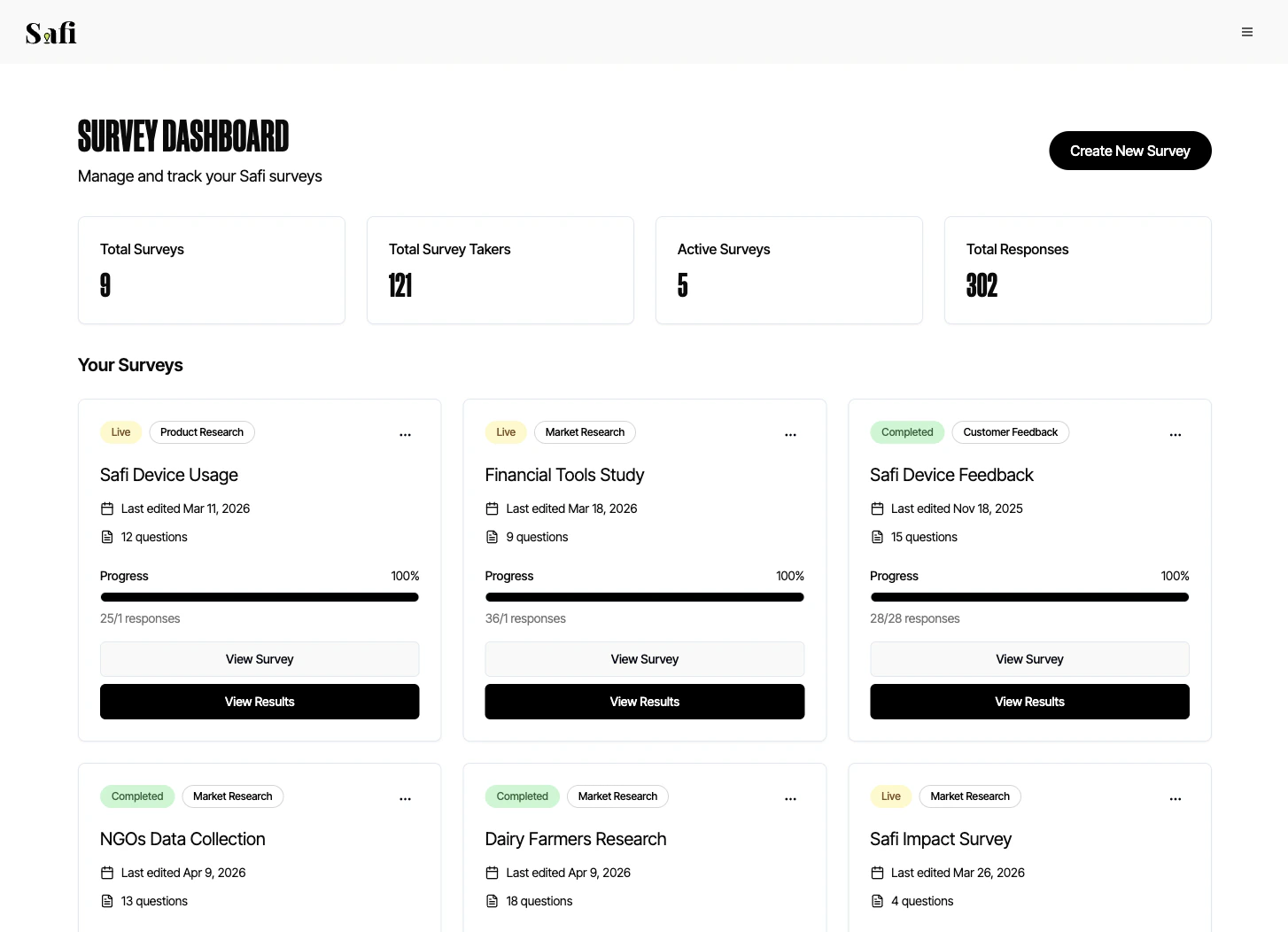
The Safi Data dashboard is your home screen. Every survey you have created appears here, along with its current status and response progress.
 ***
## Survey List
Each container in the dashboard represents one survey and shows:
* **Survey name** — the name you gave it during setup
* **Status** — the current state of the survey (see below)
* **Response progress** — how many respondents have completed the survey out of your goal (e.g. *47 / 100*)
* **Date created and last edited** — when the survey was set up and last edited
* **Actions** — options to view, edit, duplicate, or mark as complete
***
## Survey Statuses
| Status | What it means |
| ------------- | --------------------------------------------------------------------------------------------------------------- |
| **Draft** | The survey has been set up but not yet sent. You can still edit questions, respondents, and settings. |
| **Live** | The survey has been sent and is actively collecting responses. Respondents are receiving and completing it now. |
| **Completed** | The survey is closed. No further responses will be collected. Results are fully available for analysis. |
### Marking a Survey as Complete
You can manually mark a survey as complete at any time — for example, if you've collected enough responses before hitting your goal, or if you want to close the survey early.
1. Find the survey in your dashboard
2. Click the **⋯** menu on the right
3. Select **Mark as Complete**
4. Confirm the action
Marking a survey as complete is permanent. Once closed, respondents who haven't yet replied will not be able to participate, and no further responses will be collected.
***
## Response Progress
The progress indicator shows **completed responses / goal** in real time. A response is counted as complete when a respondent has answered all questions in the survey.
Partial responses (where a respondent started but did not finish) are not counted in the progress total, but are still accessible in the transcript view.
***
## Clicking Into a Survey
Click any survey row to open the full results view. From here you can access:
See aggregated answers and AI-generated themes for each question and objective.
Read or listen to every individual conversation, with AI chat and CSV export.
Generate audience personas automatically from your response data.
***
## Survey List
Each container in the dashboard represents one survey and shows:
* **Survey name** — the name you gave it during setup
* **Status** — the current state of the survey (see below)
* **Response progress** — how many respondents have completed the survey out of your goal (e.g. *47 / 100*)
* **Date created and last edited** — when the survey was set up and last edited
* **Actions** — options to view, edit, duplicate, or mark as complete
***
## Survey Statuses
| Status | What it means |
| ------------- | --------------------------------------------------------------------------------------------------------------- |
| **Draft** | The survey has been set up but not yet sent. You can still edit questions, respondents, and settings. |
| **Live** | The survey has been sent and is actively collecting responses. Respondents are receiving and completing it now. |
| **Completed** | The survey is closed. No further responses will be collected. Results are fully available for analysis. |
### Marking a Survey as Complete
You can manually mark a survey as complete at any time — for example, if you've collected enough responses before hitting your goal, or if you want to close the survey early.
1. Find the survey in your dashboard
2. Click the **⋯** menu on the right
3. Select **Mark as Complete**
4. Confirm the action
Marking a survey as complete is permanent. Once closed, respondents who haven't yet replied will not be able to participate, and no further responses will be collected.
***
## Response Progress
The progress indicator shows **completed responses / goal** in real time. A response is counted as complete when a respondent has answered all questions in the survey.
Partial responses (where a respondent started but did not finish) are not counted in the progress total, but are still accessible in the transcript view.
***
## Clicking Into a Survey
Click any survey row to open the full results view. From here you can access:
See aggregated answers and AI-generated themes for each question and objective.
Read or listen to every individual conversation, with AI chat and CSV export.
Generate audience personas automatically from your response data.